JupyterHub for Teaching
For teaching purpose, a dedicated jupyterhub is available at https://data.ipsl.fr/jupyclass/.
Support Contact
this service has a dedicated support address jupyclass-support
Reset password
https://jupy-pass.ipsl.fr/pwrst/
Service resources
A Dedicated mini-cluster hosted in IPSL polytechnique datacenter hosts the jupyterhub.
Warning
The server is not connected to IPSL databases (/bdd) to improve resilience of the service in case of storage failures or other infrastructure problems.
- 64 cores
- 256 GB of RAM
- 7TB of storage
- 4TB for users homes
- 3TB for shared data
Storage
User
Each user is allows to store in its home directory:
- 20 GB
- 20000 files.
Shared
- To share data with your students you can request a dedicated directory in
/datawhere you can upload your data and notebooks. You can also change the permissions of the directory to prevent students from deleting your files. - Contact jupyclass-support to request a shared directory.
Access to the server
The server is accessible from internet. To connect to it you need a dedicated login/server.
For teachers
Send an email to jupyclass-support to get an account.
For students
Warning
Account creation requests should be made at most 2 weeks before the start of the course.
Teachers need to provide the elements below in an excel sheet with 3 columns:
- firstname
- lastname
When requesting account creation you also need to provide the date of end of validity for accounts
A form should be soon available on espri website to ease the process.
Then send the file to jupyclass-support.
Starting a session
-
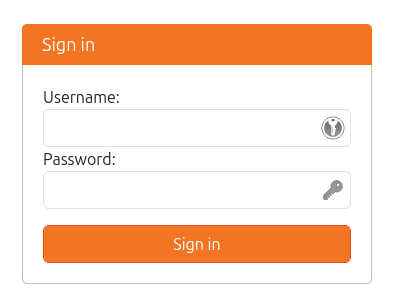
Go to https://data.ipsl.fr/jupyclass/ and log in with your credentials.
-
Choose the ressource you need for your sessions (be careful to choose the right one to leave ressources available for everyone).
- Choosing the number of cores and the amount of RAM you need for your session
- 1 core and 4GB of RAM
- 2 cores and 8GB of RAM
- 4 cores and 16GB of RAM
- you can see the available ressources on the server by clicking on the
Available ressourcesbutton
- Duration of the session (1h, 2h, 4h, 8h, 6h, 12h)
-
Click on
Startto start your session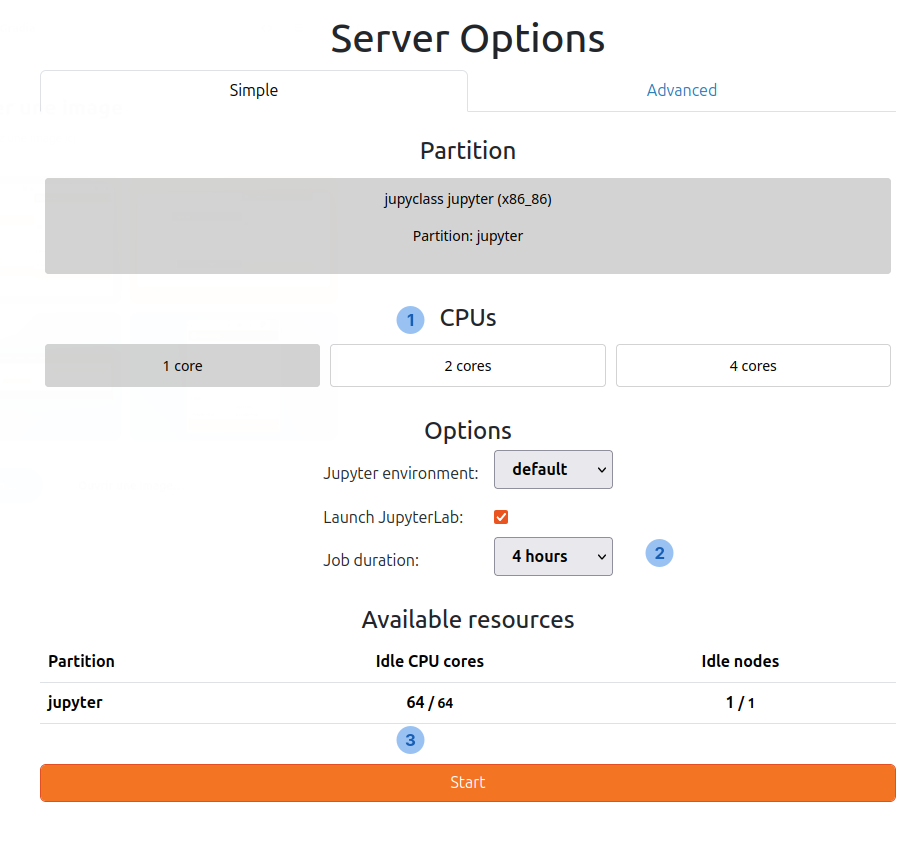
Warning
If you use too much ressources (cpu or RAM), your session will be killed
Ending a session
-
In the
Filemenu, clickHub Control Panelto return to the control panel.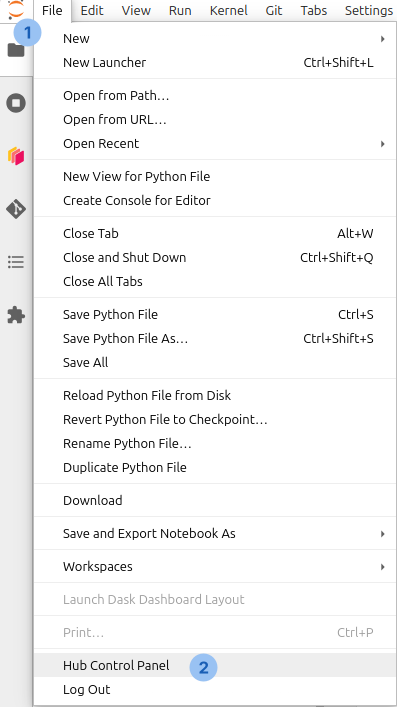
-
Click
Stop My Serverto stop your session.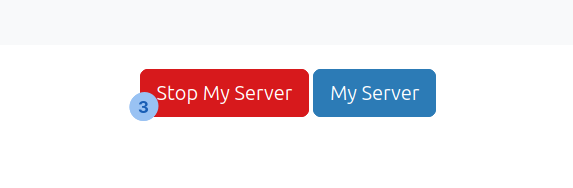
Available modules
The jupyterhub for teaching gives access to all modules environments available on spirit/spiritx clusters. For more details see here.
To view the full list of available modules run the command module avail.
Available environments in notebook
Python
Default environment is based on python 3.12 and pangeo recommanded packages.
The old default environment based on python 3.9 is still available and can be used by selecting the Python 3.9 (XPython) kernel in jupyterlab. A detailled list of python package for this environment is available here.
R
The server use the same R environment as the one available as module on IPSL clusters and described here.
If packages are missing for your training session, we can try to install them upon request.
C/C++
This xeus-cling jupyter kernel allows to do interactive C/C++.
More informations are available here
Available environments in jupyterlab editor and terminal
You can use jupyter editor and terminal to use and develop code in compiled languages (C/C++, fortran, ...)
Fortran
By default gfortran 9 is available. Using available module command you can use gfortran v10 and v11, intel fortran compiler v19 and v2021 and nvfortran v20 and v21.
C/C++
By default gcc v9 is available. Using available module command you can use gcc v10 and v11, intel compiler v19 and v2021 and nvcc v20 and v21.
Uploading data on jupyterhub
Using JupyterLab interface
Steps to upload your data:
- Zip or tar your the data/notebooks you want to upload (not possible with
.rarfiles). For example:
or
-
Upload your data using JupyterLab
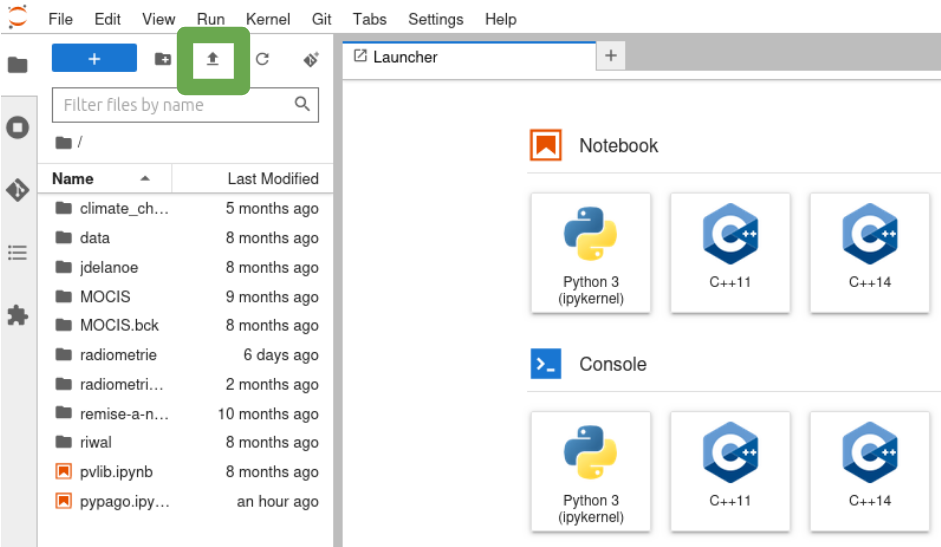
-
Open a terminal on the jupyterlab
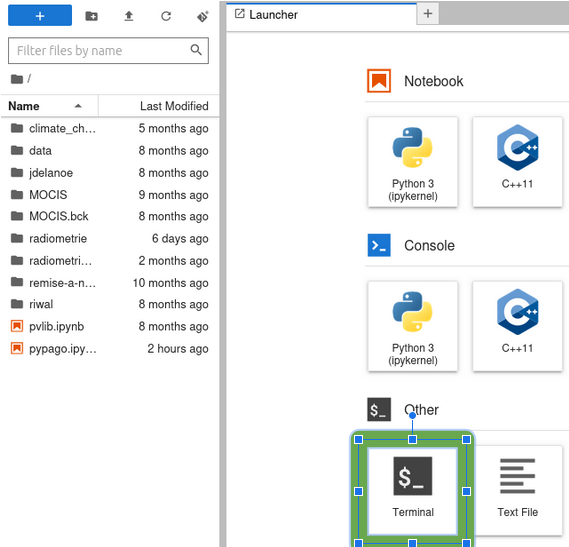
-
if you want to share the data with students, uncompress them to
/datadirectory
or
- To prevent students from deleting your files, change the permissions of the directory
Using scp command
Warning
- You need to have an ssh key registered on the server to use scp command.
- You need an account on IPSL spirit(x) cluster
Pre-requisites
You need to make a request to jupyclass-support to add you ssh public key. you can provide your ssh key or add to add the one from your spirit account.
Uploading data
- log into your spirit(x) account and go to the directory where your data is stored. For example
my_data.ncin/home/user/my_data.nc - Use the scp command to upload your data to jupyterhub server. For example: